
Getting started with transactional emails
Create a transactional email template, add variables, test it, publish it, and send it through the API.
Transactional emails are sent to a single contact and triggered by a user action, like resetting a password or completing a purchase.
This guide walks you through creating a transactional template in Sendfully and sending your first email through the API.
How it works
Transactional emails in Sendfully follow a template-based workflow:
- Create a template in the editor with your email content and layout
- Define variables for dynamic content (like an order number or password reset URL)
- Test the template by sending a preview to your own inbox
- Publish the template to lock in a stable version for API use
- Send emails via the API by referencing the template and passing in variable values
Create a template
- Navigate to the Transactional page
- Click Create template
- Choose a starting point by selecting a pre-built design or clicking Blank canvas
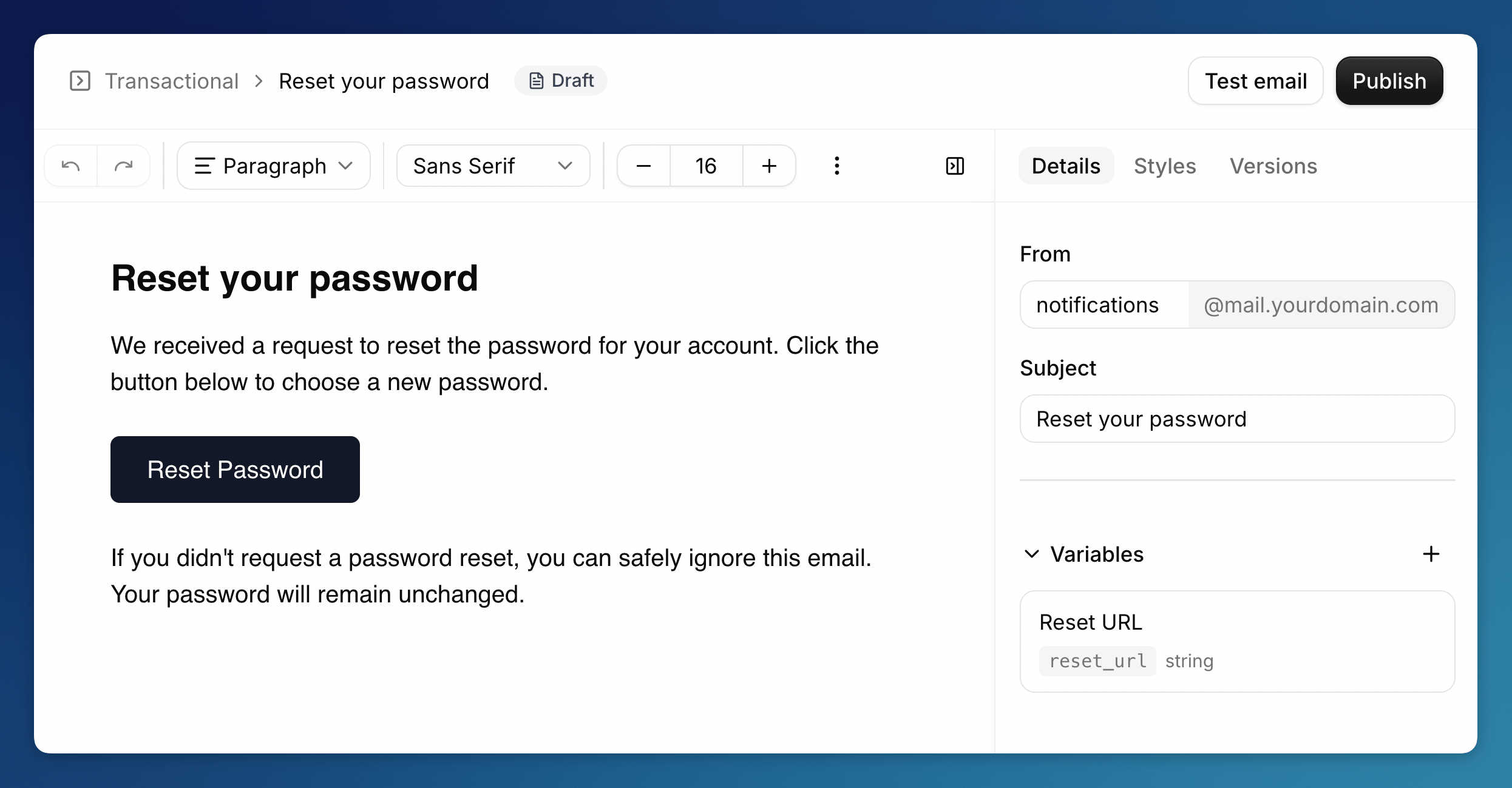
Fill in the basics in the Details panel on the right side:
- Sender name - An optional display name shown to recipients (e.g.,
Company Name). When set, the from address is formatted asCompany Name <notifications@mail.yourdomain.com>. - From - The sender email address (e.g.,
notifications@mail.yourdomain.com) - Subject - The subject line your recipients will see. This supports variables, so you can include dynamic content like
Your order {{order_id}} has shipped.
Then use the editor to compose your email body. You can add rich text, images, buttons, and other content blocks.
Template variables
Variables insert dynamic content into your emails using double curly brace syntax: {{variable_name}}.
There are two kinds of variables you can use:
Built-in contact variables
These are automatically available when the recipient matches a contact in your account:
| Variable | What it inserts |
|---|---|
{{email}} | The contact's email address |
{{first_name}} | The contact's first name |
{{last_name}} | The contact's last name |
Custom template variables
For data specific to your template (like an order number or a reset link), define custom variables in the Variables section of the side panel.
When defining a variable, you'll set:
- Label - A friendly name shown in the editor and test dialog
- Key - The identifier used in your template (lowercase letters, numbers, and underscores only)
- Type - The expected data type: string, number, boolean, or date
To insert a variable, place your cursor where you want it and type {{ to open the variable picker.
Inline fallbacks
You can add a fallback directly in the variable syntax: {{first_name|there}}. If the contact doesn't have a first name saved, the email will read "Hi there" instead of showing a blank.
When you send an email through the API, custom variable values you pass in take priority over contact data and fallback values.
Test your template
Before publishing, send a test email to check that your layout and variables look right.
- Click the Test email button in the editor header
- Enter a recipient email address
- Fill in values for your template variables
- Click Send test email
The test email arrives with a [Test] prefix in the subject line. It's a good idea to check it on both desktop and mobile, and in light mode and dark mode, to make sure everything looks right.
Test emails use the current draft, not the published version, so you can iterate without publishing.
Publish your template
Publishing makes your template available through the API.
- Click the Publish button in the editor header
- Review the template's details in the confirmation sheet
- Swipe to confirm
Each time you publish, Sendfully creates an immutable version snapshot. API sends always use the latest published version, so you can keep editing drafts without affecting live emails.
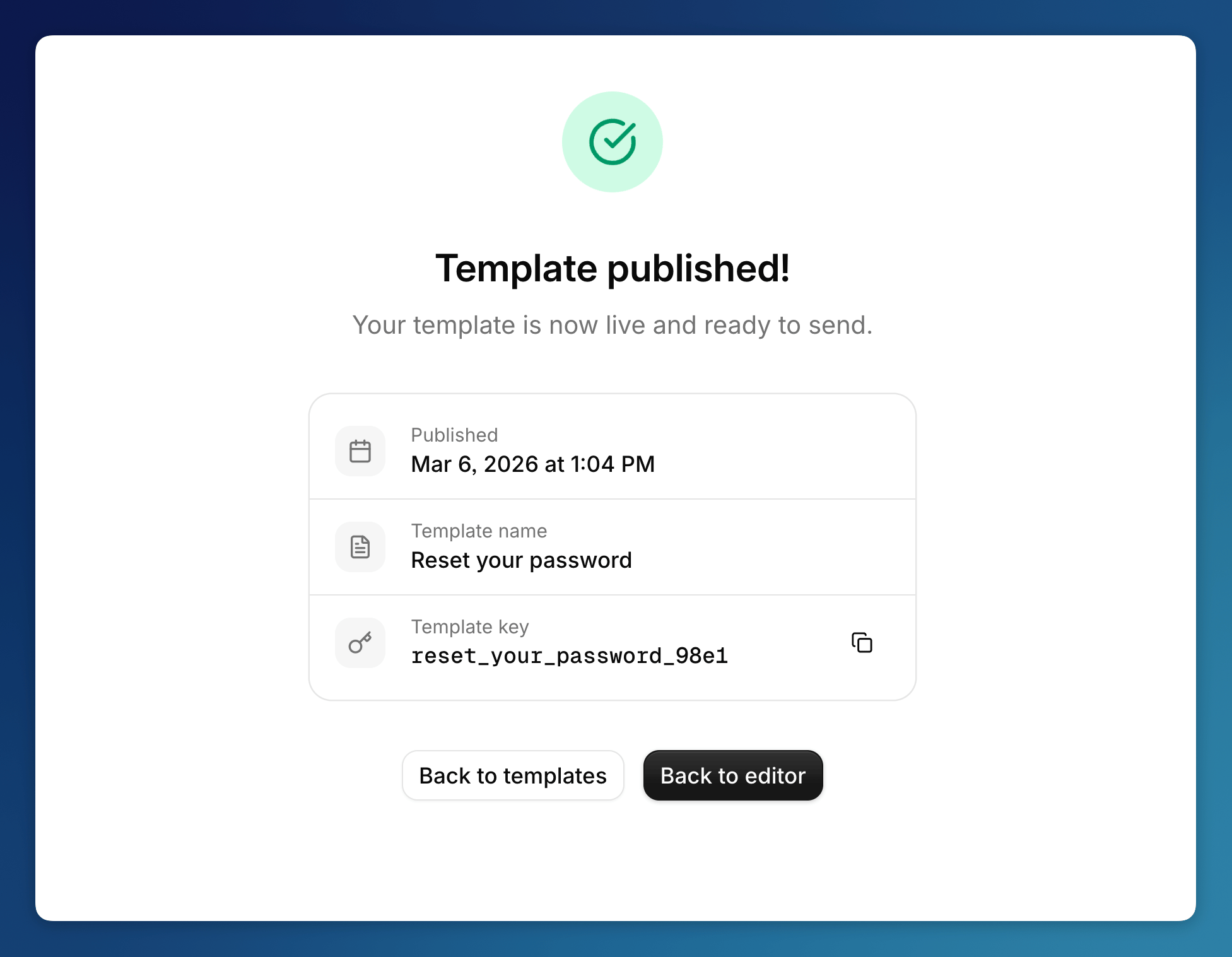
After publishing, you'll see a success page with your template key. This is the identifier you'll use when sending emails through the API. Copy it and keep it handy.
Editing after publishing
You can keep editing a published template. The status changes to Edited to flag unpublished changes, and API sends continue using the last published version until you publish again.
Republishing creates a new version. You can view your version history and revert if needed.
Send an email via the API
Once published, send a transactional email by making a POST request to the send endpoint:
curl -X POST https://api.sendfully.com/v1/emails/send \ -H "Authorization: Bearer <token>" \ -H "Content-Type: application/json" \ -d '{ "templateId": "reset_your_password_98e1", "to": "recipient@example.com", "variables": { "reset_url": "https://example.com/reset?token=abc123" } }'You can also override the from address, subject line, and reply-to per send, and schedule emails for future delivery. The from field accepts a sender name using the format Sender Name <email@domain.com>.
For all available parameters, see the Send email API reference.
What's next?
- Types of emails — how transactional and marketing emails differ
- Sending domain — set up your domain if you haven't already