
Quickstart
Get started with Sendfully in minutes.
Welcome to Sendfully! This guide walks you through setting up your account and sending your first broadcast email. We'll use Coach Wells from Richmond FC as our example. ⚽
Step 1: Add your first contacts
When you first sign in, you'll see a guided onboarding checklist. Start by adding some contacts who will receive your emails.
Have an existing list? You can import contacts from a CSV file instead.
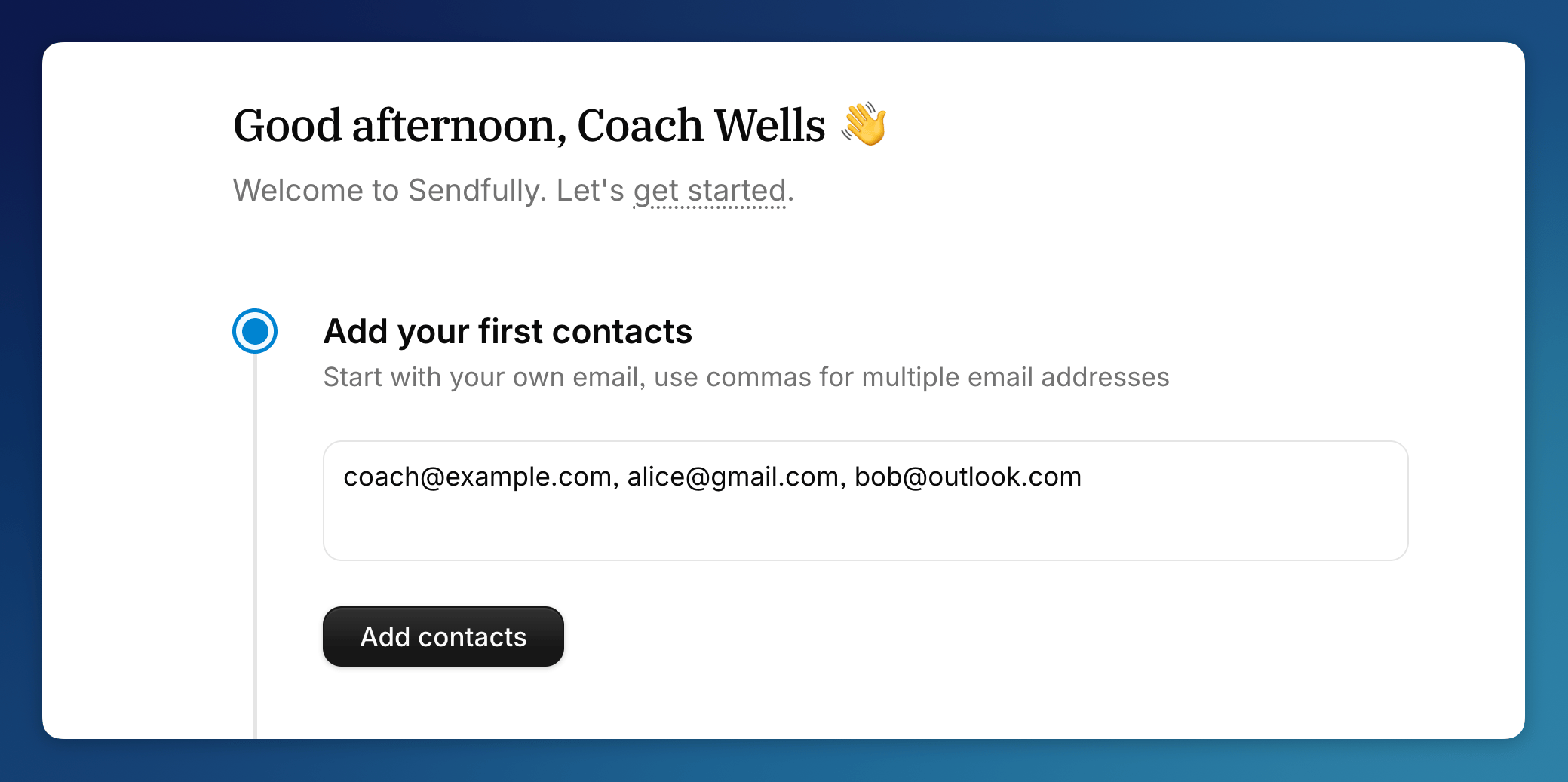
Enter email addresses separated by commas. You can add your own email address to test with, or add team members, friends, or subscribers.
Click Add contacts to continue.
Step 2: Add a sending domain
Next, you'll set up a custom domain for sending emails. This is the domain that appears in your "from" address. We recommend using a subdomain (like mail.yourdomain.com) rather than your root domain (yourdomain.com).
For more details, see the domain setup guide and learn why subdomains are recommended.
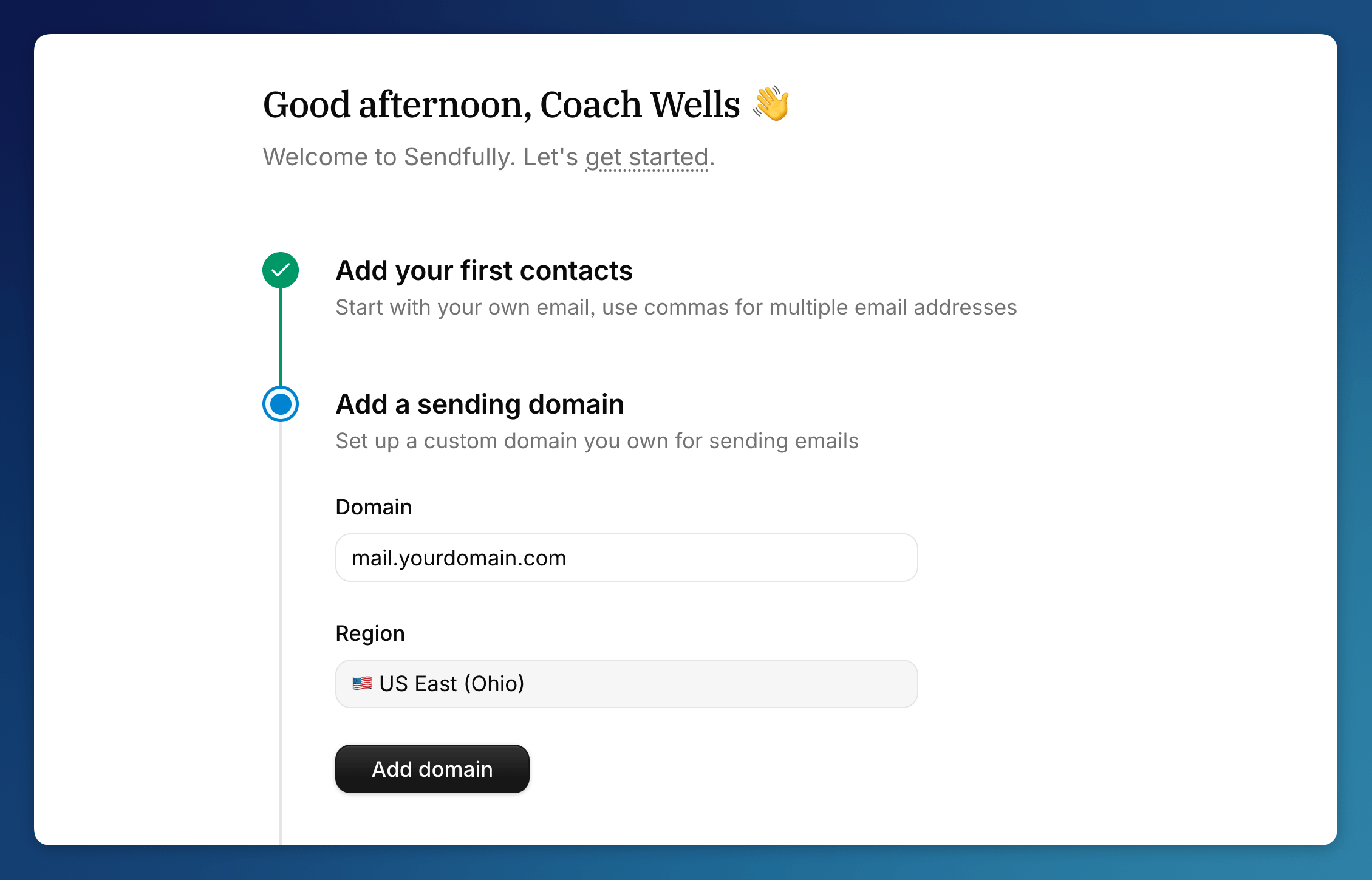
- Enter your domain (like
mail.yourdomain.comormail.richmondfc.co.uk) - Click Add domain
Step 3: Verify your sending domain
To prove you own the domain, you'll need to add some DNS records through your domain provider (like GoDaddy, Namecheap, or Cloudflare).
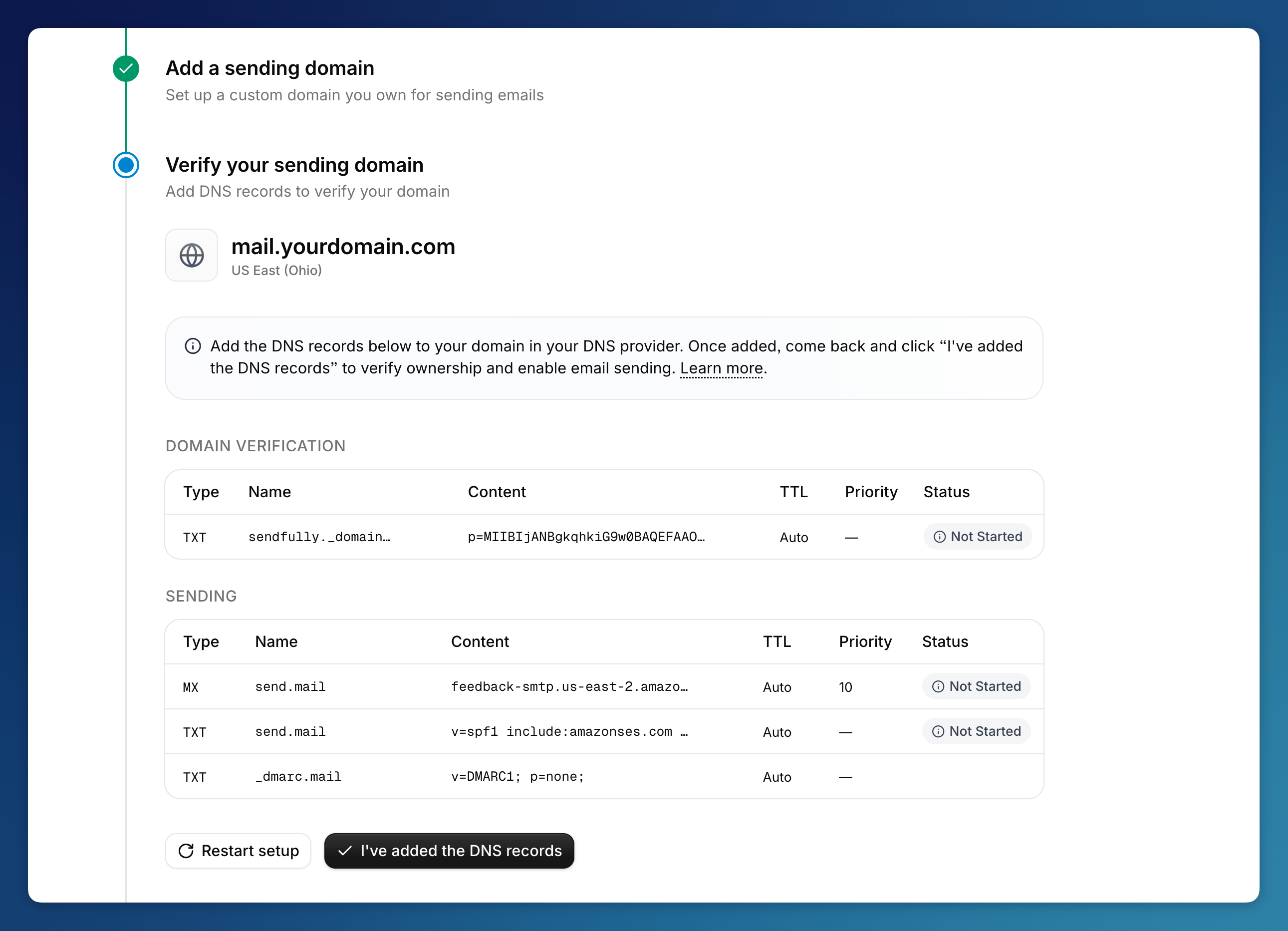
Copy the DNS records shown in the Domain Verification and Sending sections, then add them to your domain's DNS settings.
Once you've added the records, click I've added the DNS records.
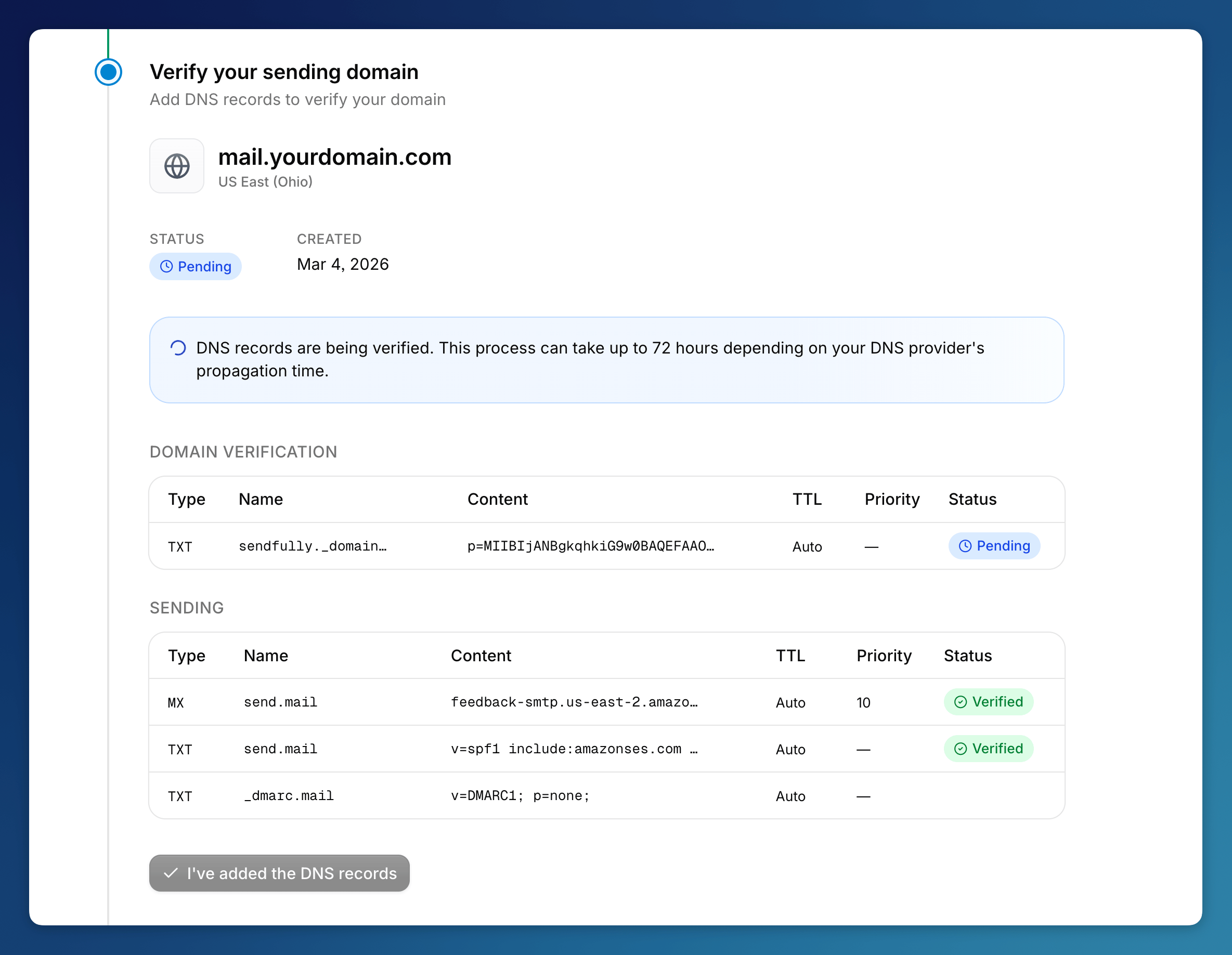
DNS verification can take up to 72 hours, but often completes within a few minutes. The DKIM record (in the Domain Verification section) is the key record you need to start sending - once it's verified, you're good to go.
Step 4: Create your first email
Once your domain is verified, you're ready to create your first email. Click Create email in the onboarding checklist.
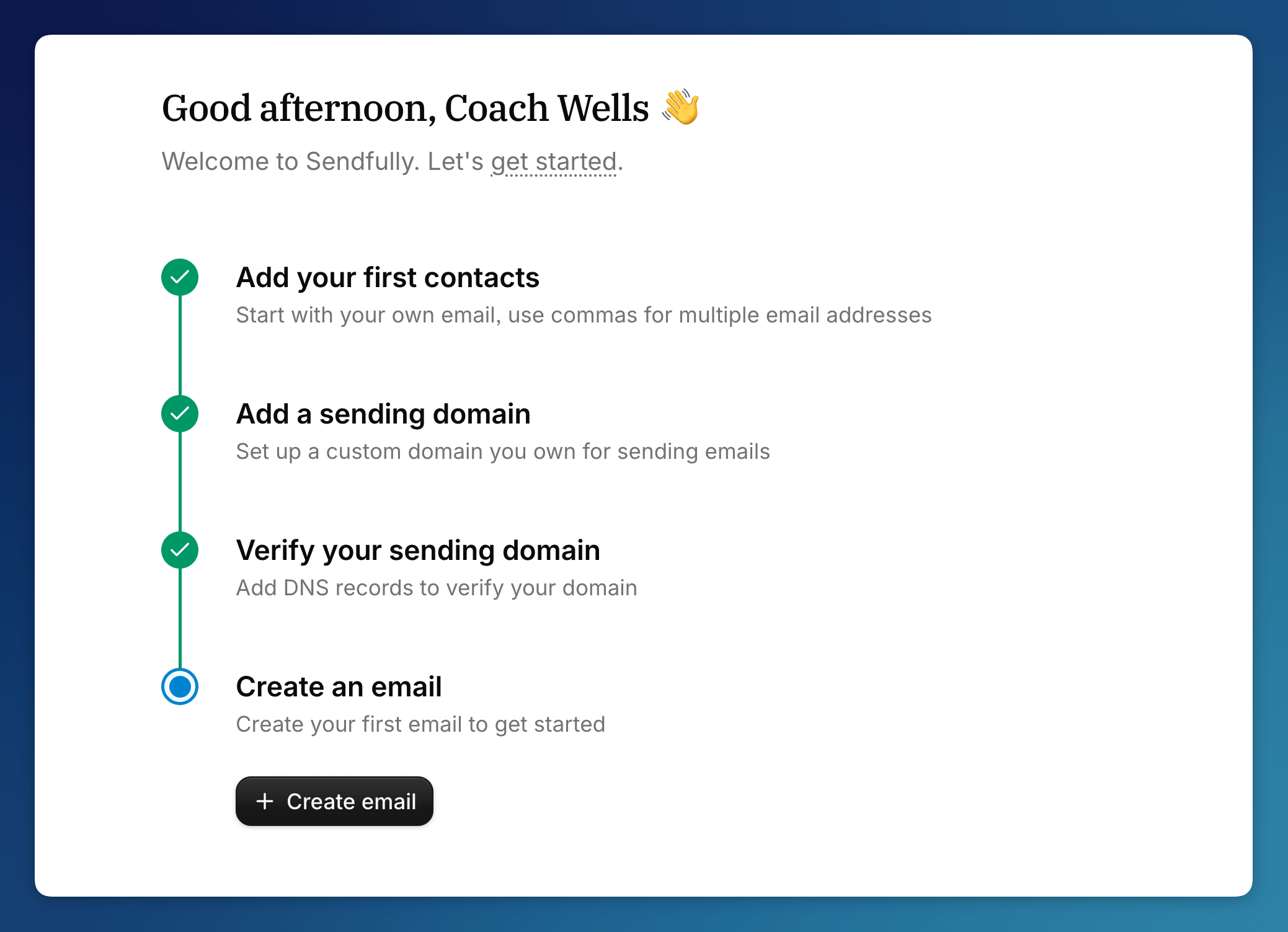
You'll see a dialog asking you to choose the type of email you want to create.
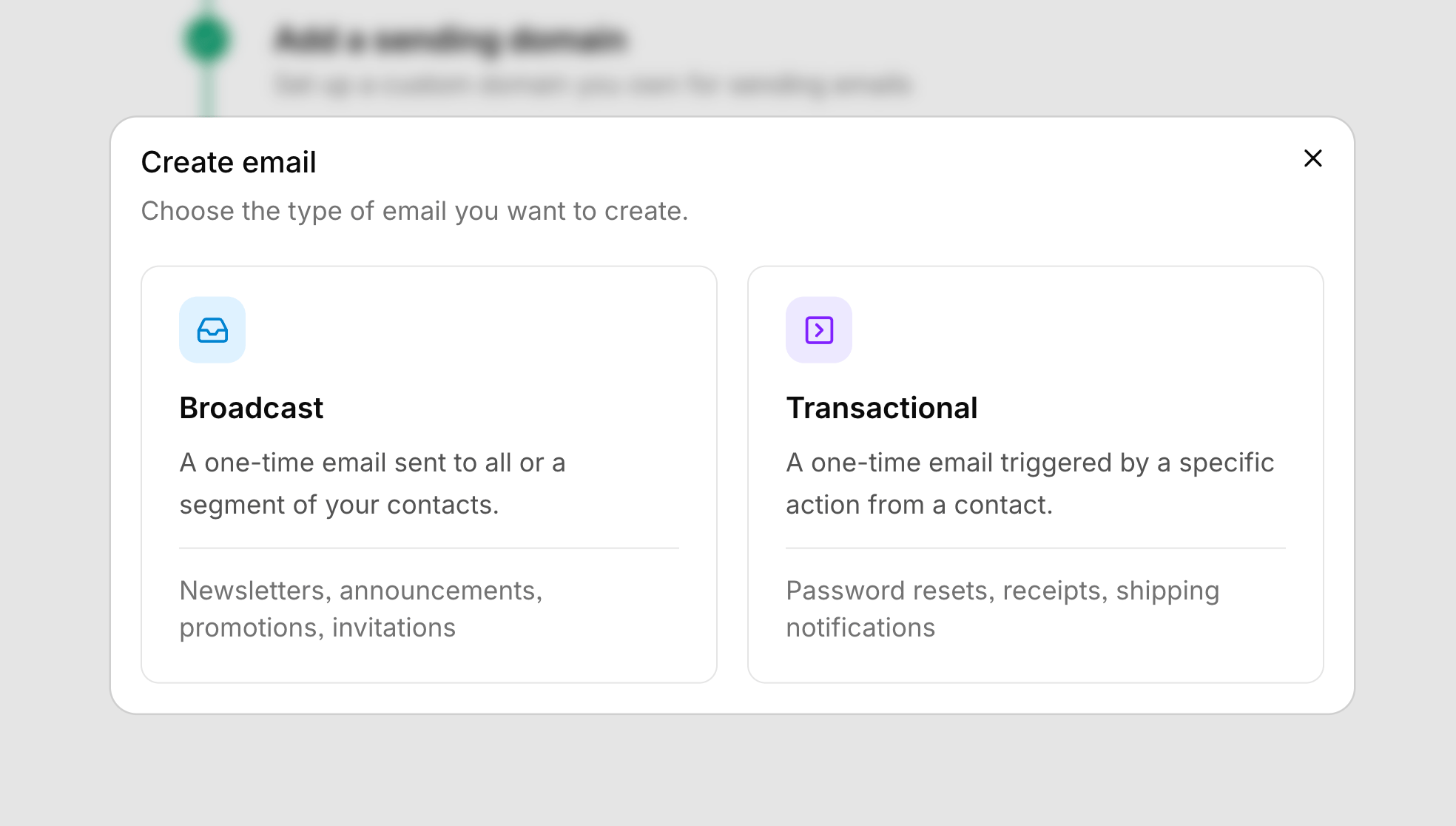
- Broadcast - A one-time email sent to all or a segment of your contacts. Use this for newsletters, announcements, and promotions.
- Transactional - An email triggered by a specific action from a contact, like a password reset or receipt. Transactional emails are sent through the API.
For this guide, select Broadcast to create a newsletter.
Step 5: Write your broadcast
The email editor gives you everything you need to craft your broadcast.
For tips on writing effective emails and using personalization, see sending your first email.
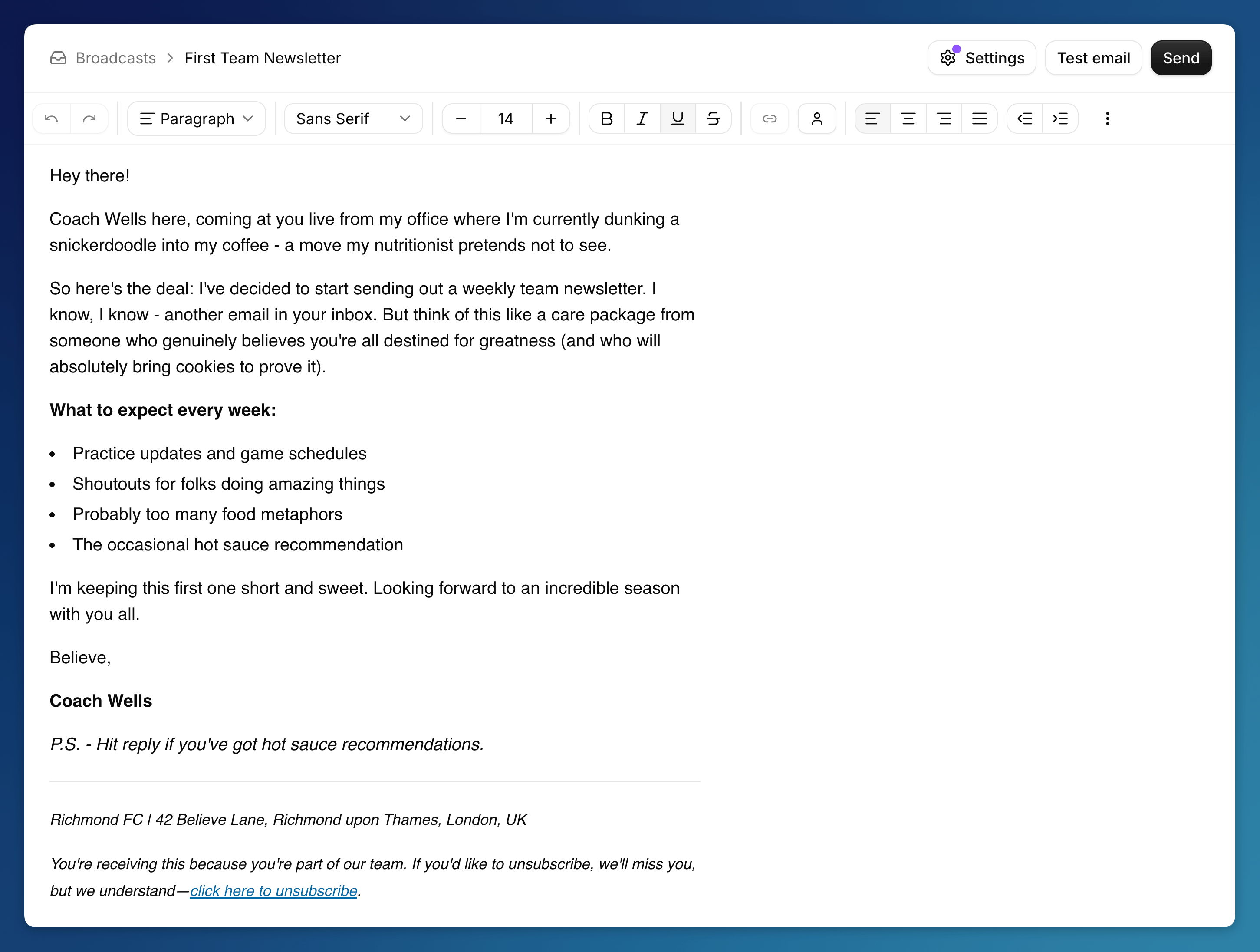
Use the formatting toolbar to style your text, add lists, insert images, and more. You can write in your own voice, whether that's professional, casual, or somewhere in between.
When you're done writing, click Test email in the top right to send yourself a preview.
Step 6: Send a test email
Before sending to your entire list, send a test to check how things look.
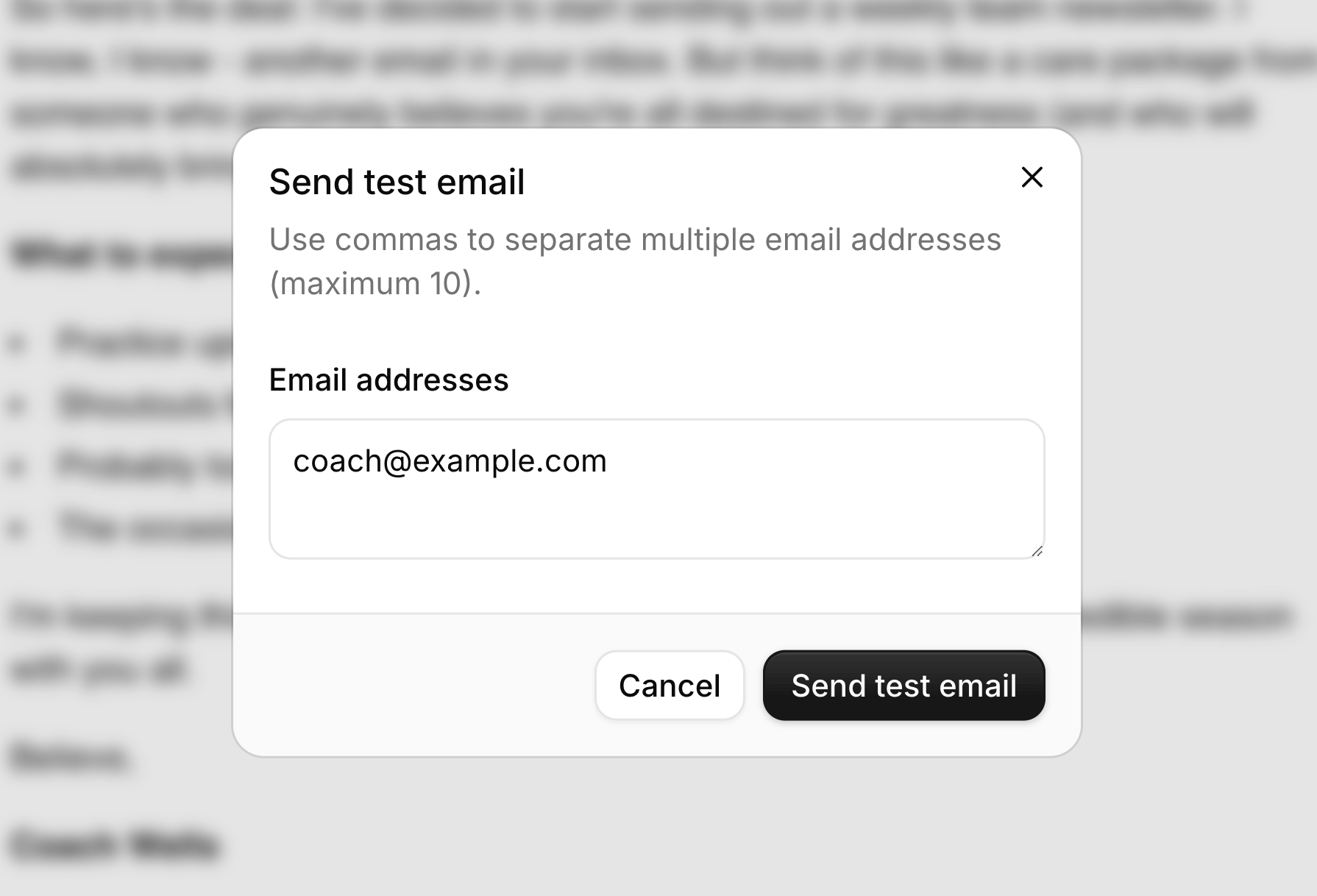
Enter your email address (or multiple addresses separated by commas) and click Send test email. Check your inbox to make sure everything looks right.
Step 7: Send your broadcast
When you're ready to send to your contacts, click the Send button.
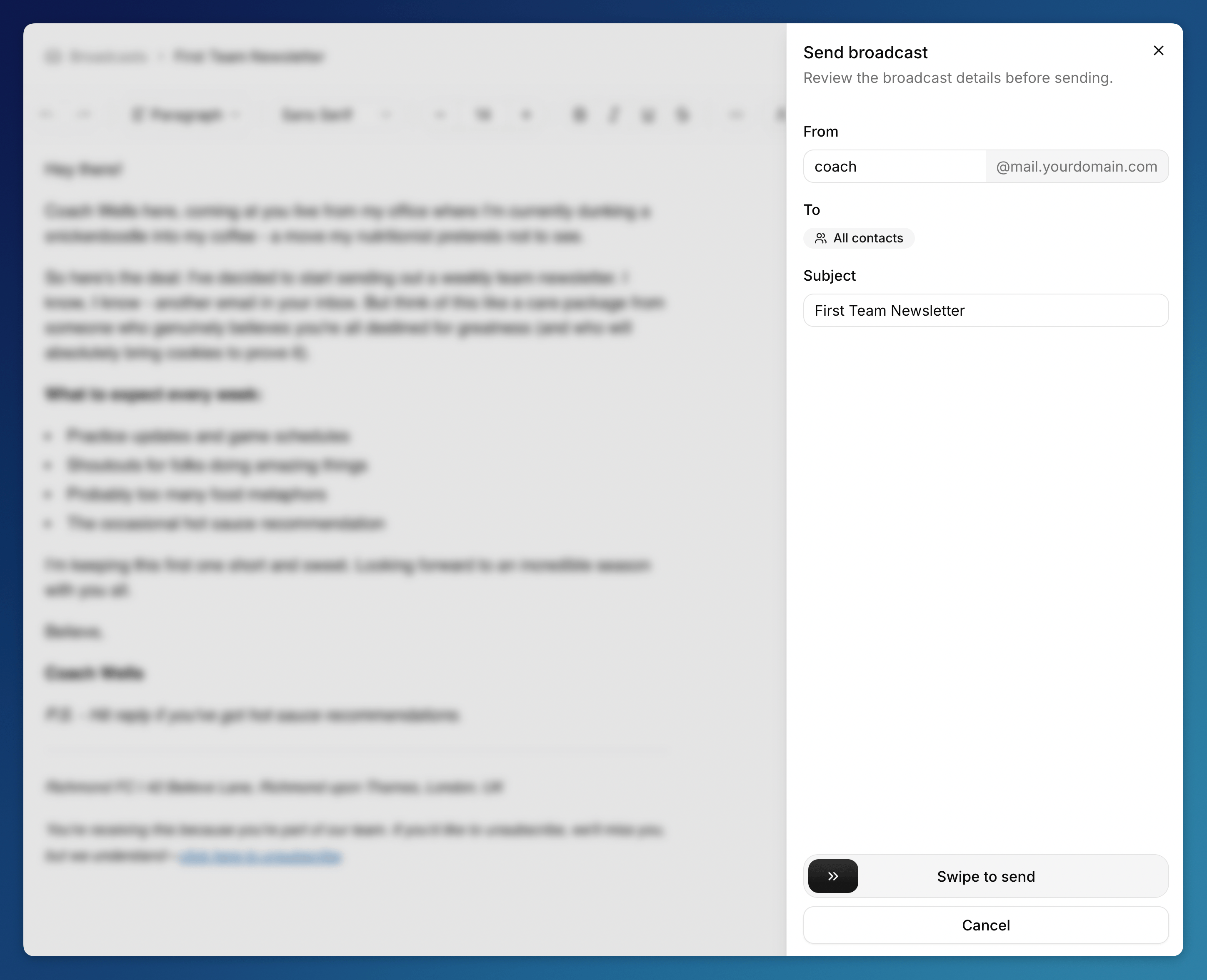
Review the details:
- From: Your sending email address
- To: Your contact list
- Subject: Your email subject line
Swipe the Swipe to send button to send your newsletter. Congrats - you've sent your first email with Sendfully!
What's next?
- Add more contacts through the Contacts page or import from CSV
- Check the Email Log to see delivery status and engagement
- Explore Settings to customize your account
- Learn about email best practices and personalization
Have questions or feedback? Click the Feedback button in the top right corner. We'd love to hear from you.